Membership cards become digital passes on your phone
Technology
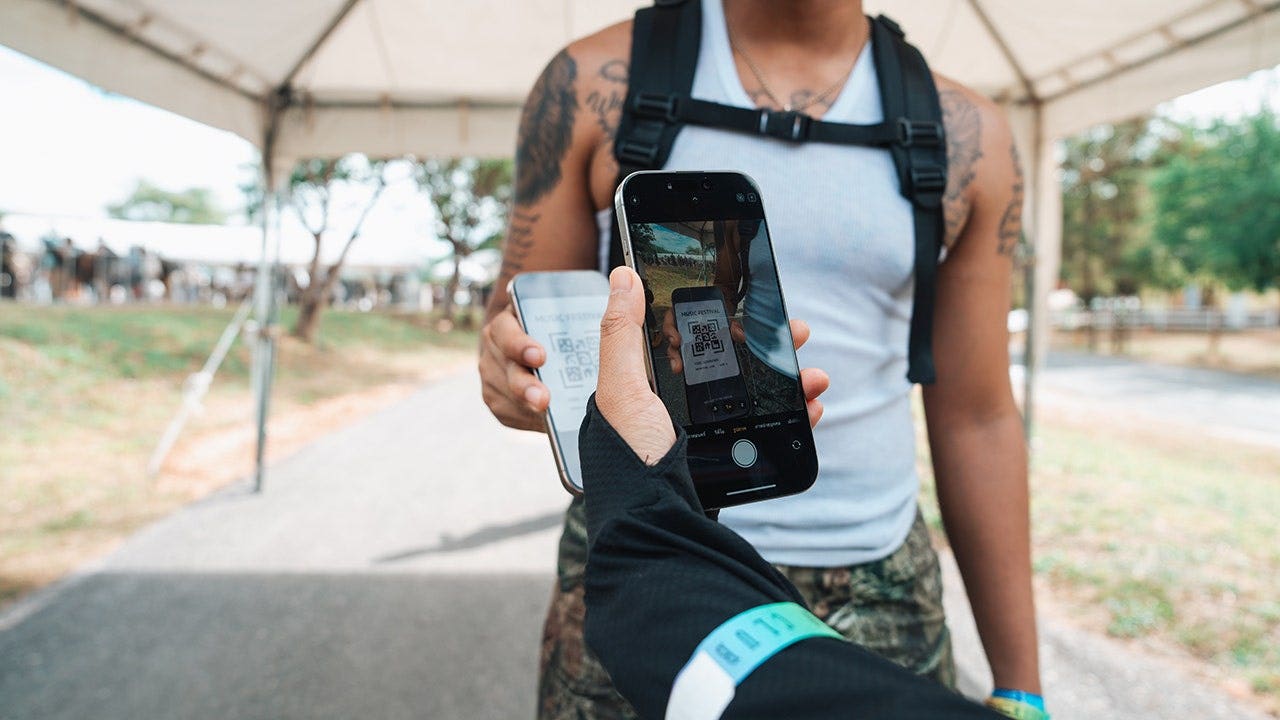
Apple's iOS 27 lets iPhone owners build Wallet passes from photos of physical cards, joining Samsung and Google in the push to slim down wallets Anyone carrying a library card, gym fob or grocery rewards tag that exists mainly to show a scanner a barcode can now replicate it digitally. With iOS 27, Apple has added a way to generate a pass inside Apple Wallet straight from a physical card, a photograph or a screenshot — no "Add to Apple Wallet" button from the issuer required. Samsung Galaxy and Google Pixel users have comparable tools, so more plastic can stay at home.
How it works on iPhone
Apple singles out library cards and gym memberships as prime candidates. On an Apple Intelligence-compatible handset, the software can spot a barcode or QR code in an image and offer to file it in Wallet. That feature demands a supported device — the iPhone 15 Pro, iPhone 15 Pro Max or iPhone 16 family and later compatible models — and availability may vary by language and region. A manual route exists as well: keep the code sharply in focus, since a blurry shot can stump both your phone and later scanners. After building a pass, you can tap View Original Photo to revisit the source image, adjust its look, edit its details, or add and remove fields. Samsung and Google offer similar tools
Samsung Wallet already stores most membership cards bearing a barcode, per Samsung, and supports participating memberships built into the app; open the wallet, pick the membership and the code appears for a cashier or reader. Menu labels shift slightly across Galaxy models and Wallet versions. Google Wallet, meanwhile, saves passes from images containing a barcode or QR code — library cards, gym passes and parking passes among them. To retrieve the source picture, open the pass and tap the More button in the upper-right corner. Google also files this feature under Everything else in Add to Wallet, where you accept consent terms if asked, snap or select a photo, review the detected details, edit them and tap Add. What to try — and what to avoid
Begin with cards whose job is simply presenting a barcode or QR code to a scanner: library cards, gym memberships, store loyalty cards and parking passes are reasonable bets, depending on how each organization verifies them. The simplest check is the card itself — if the person behind the counter normally scans a static printed code, a digital copy has a fair chance of working. Hang onto the physical card until the digital version passes a real test, since some scanners struggle with phone screens and some organizations insist on the original. There is a firm boundary. Photographing a card does not make it an official digital credential. Never assume a picture of a driver's license, credit card, secure workplace badge or similar sensitive item can serve as a legitimate replacement; some credentials need verification from the issuer, and payment cards carry their own security and enrollment rules. Event tickets warrant particular care — many ticketing services use barcodes that refresh or rotate to thwart fraud, and a screenshot of one may fail at the gate. Whenever an issuer offers an official Add to Apple Wallet or Add to G← Back to Technology